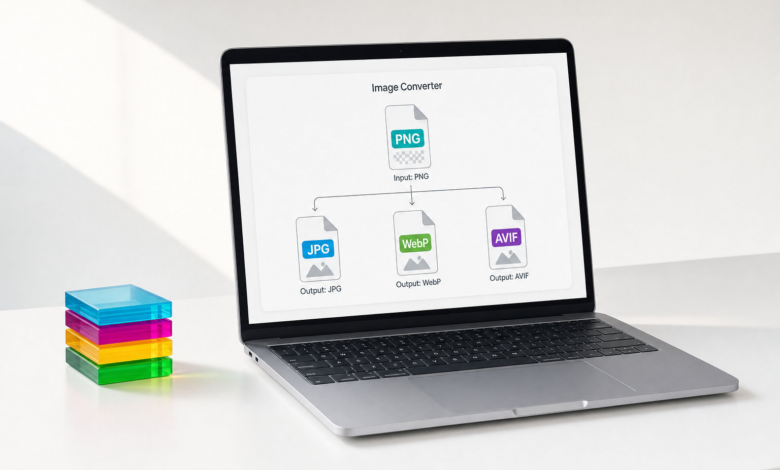
Modern digital life demands flexible image formats for seamless sharing and storage. Converting images such as PNG to JPG, WebP, or AVIF is essential for compatibility and efficiency on various platforms. This guide provides clear steps and practical tips for anyone needing reliable image conversion today.
Images appear everywhere online, but different platforms demand different file types. If you have a PNG image that’s not compatible with a certain website, converting it to JPG, WebP, or AVIF can solve the problem easily. Online tools make this process accessible to everyone, letting users avoid technical complications. Using an image converter ensures your images are ready for sharing, uploading, or editing as needed.
Understanding PNG, JPG, WebP, and AVIF formats
PNG, JPG, WebP, and AVIF are among the most common image formats. PNG is popular for preserving transparency and lossless quality, making it ideal for graphics and logos. JPG, on the other hand, uses lossy compression to reduce file size, which is helpful for storing and uploading photographs quickly and efficiently.
WebP and AVIF are newer image formats that offer advanced compression without sacrificing quality. WebP provides smaller file sizes and supports transparency, while AVIF achieves even better compression and visual fidelity for modern web use. Choosing the right format depends on the platform’s requirements and the desired balance between quality and file size.
Step-by-step guide to converting PNG to JPG, WebP, or AVIF
Converting images from PNG to JPG, WebP, or AVIF has never been more straightforward. Online converters typically follow a similar process: upload your PNG file, select the output format, and start the conversion. Many tools allow users to adjust quality settings, control file size, and decide whether to preserve metadata or transparency when supported.
To get the best results, pick an online converter that is easy to use and supports all desired formats. After converting, download the finished file directly to your device. Remember to check the image before sharing or using it, especially if you need to confirm transparency or ensure photographic detail has been preserved during the conversion.
Tips for maintaining image quality and safety during conversion
To avoid common issues, always review your converted images for clarity and correct formatting. When moving from PNG to JPG, be aware that JPG does not support transparency, so some background elements may be lost. WebP and AVIF are better at keeping quality and reducing size but may not be accepted everywhere yet.
Protecting privacy is also important when using online tools. Investigate the converter’s privacy policy to ensure your images aren’t stored longer than necessary or accessed by third parties. Following these steps helps guarantee that your converted images retain their integrity while keeping your data safe for both personal and professional use.
Choosing the right format for your needs
Selecting between JPG, WebP, or AVIF for your converted image depends on its intended use. JPG is suitable for most photography and general sharing since it combines small file sizes with reasonable quality. WebP and AVIF are best for web publishing or if you need exceptionally compact files with robust quality, though some platforms may not fully support them yet.
By understanding the strengths of each format and using a reliable image converter, you can make your visuals compatible with modern requirements. Whether you are posting on social media, sharing via messaging apps, or preparing files for a website, effective image conversion ensures your visuals look their best and work everywhere you need them.