Mac users store some of their most important files on external drives – photo libraries, video projects, Time Machine backups, and working archives. When an external drive fails to show its files, or files vanish from it, the loss feels especially heavy because the data is supposed to be safe out there.
The good news: external drive recovery on Mac works well. Deleted files stay on the drive until overwritten, and even drives that will not mount can often be scanned at the raw level.
Why External Drives Are Good Recovery Candidates
External drives recover better than most storage for a few reasons:
They are not constantly rewritten. Unlike a system drive, an external drive may sit untouched for days after a deletion – preserving the deleted data.
They use standard file systems. exFAT, FAT32, and Mac formats (APFS, HFS+) are all well understood by recovery tools.
They hold large, valuable files. Photos and video projects leave clear signatures that deep scans find easily.
What External Storage Can Recoverit Handle?
Wondershare Recoverit supports a broad range of external storage on Mac:
- External hard drives – HDDs and SSDs connected by USB or Thunderbolt.
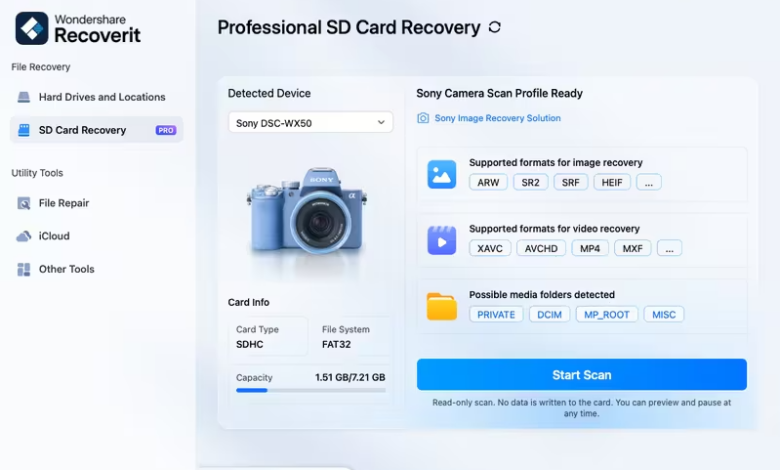
- Memory cards – SD cards and camera cards from Mac card readers.
- Cameras – connect the camera directly or read its card.
- USB drives – flash drives and portable SSDs.
The Mac data recovery tool scans all of these, and the SD card recovery module covers card-specific scenarios.
Step-by-Step: Recover Files from an External Drive on Mac
Step 1 – Connect the Drive and Stop Writing to It
Connect the external drive to your Mac. Do not copy anything to it, run a backup onto it, or let Time Machine touch it. Every write reduces recovery odds.
Step 2 – Select the Drive and Scan
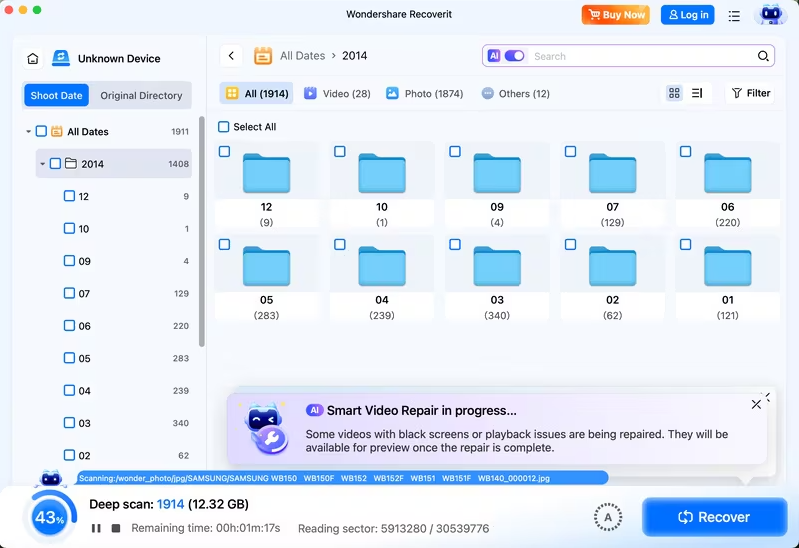
Launch Recoverit and select the external drive from the list of locations. Click **Scan**. The all-around scan finds deleted files; follow with a deep scan if the first pass misses anything.
Step 3 – Filter, Preview, and Recover
Use the filters to narrow results by file type, time, or size. Preview photos, videos, and documents to confirm they are intact, then click Recover and save them to your Mac’s internal drive or another external drive.
What If the External Drive Will Not Mount?
If the drive does not appear on your Mac at all, try these before giving up:
- Check another port or cable. Connection issues are the most common cause.
- Try another Mac. A drive that fails on one system may read on another.
- Check Disk Utility. If the drive appears there but not in Finder, the file system may be damaged – recovery software can still read the raw data.
- Scan it anyway. Recoverit can often detect and scan drives that macOS does not fully mount.
What If the Drive Is Physically Failing?
If the drive clicks, makes unusual noises, or drops connection repeatedly, stop reading it yourself – each attempt risks further damage. Professional recovery services with clean-room equipment are the realistic option for physically failing drives. For a photo library or video archive, the cost is often justified.
Preventing External Drive Loss
- Keep two backups. A photo library or video archive should never exist in one place.
- Eject before unplugging. Always use safe ejection on Mac.
- Don’t use a photo drive as scratch space. Constant reads and writes age the drive.
- Check drive health. macOS can run SMART checks; a failing drive warns before it fails.
- Retire old drives. A drive that has served years deserves backup-only duty.
Conclusion
External drives are some of the most recoverable storage there is – they hold valuable files, use standard formats, and are not constantly rewritten. Connect the drive, stop writing to it, and scan with a tool built for the job. With Wondershare Recoverit, you can recover files from an external drive on Mac – hard drives, memory cards, cameras, and USB drives alike – previewing and saving them somewhere safe. The files on that external drive are still there, and they are worth bringing back.
READ ALSO: AI in HR: Transforming Human Resource Management for a Smarter Workforce