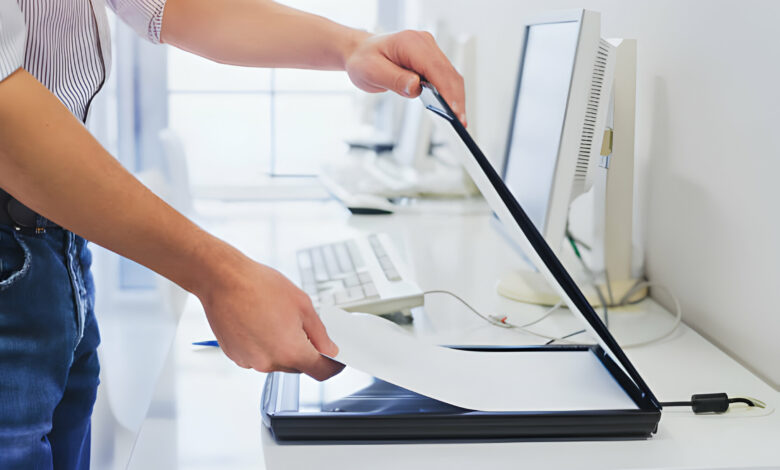
Paper documents can pile up quickly, whether they are work forms, school assignments, receipts, tax records, medical paperwork, handwritten notes, or personal files. Keeping everything in physical folders may work for a while, but it can become difficult to search, organize, share, or protect important information over time. Learning how to scan a document can help make everyday recordkeeping easier and more efficient.
Scanning turns paper files into digital documents that can be stored on a computer, backed up in the cloud, attached to emails, or organized by project, date, class, client, or category. This can be especially helpful for people who manage a mix of work, school, and personal responsibilities. Instead of searching through stacks of paper, users can quickly locate the files they need and keep important information accessible.
A good scanning process is about more than pressing a button. Preparing the paper, selecting the right settings, choosing a useful file name, and organizing the final scan all help create digital documents that are easier to use later. With the right approach, scanning can support a cleaner workspace, better file management, and less stress when important paperwork is needed.
Preparing Your Paper Files Before Scanning
Before scanning, it helps to organize the documents you want to digitize. Start by sorting papers into categories such as work, school, financial records, medical documents, receipts, or personal files. Removing duplicates, outdated papers, or documents you no longer need can make the scanning process more manageable.
Next, prepare each page so it scans cleanly. Remove staples, paper clips, sticky notes, or folded corners that could interfere with the scan. Smooth out wrinkled pages when possible, and make sure documents are facing the correct direction. If you are scanning several pages at once, check that they are stacked evenly to avoid jams or misfeeds.
For larger scanning projects, a scanner with document feeder can be especially useful. Instead of placing one page on the glass at a time, an automatic document feeder can help process multiple pages more efficiently. This can save time when scanning contracts, class packets, client files, invoices, reports, or other multi-page documents.
It is also helpful to think about the final purpose of the scan. A document that needs to be emailed may require a smaller file size, while an important record may need a higher-quality scan. Some users may also want searchable PDFs, which can make it easier to find specific words or names within scanned documents later.
Saving, Naming, and Organizing Scanned Documents
After scanning, the way documents are saved and organized matters. A clear naming system can prevent confusion and make files easier to locate. Instead of using generic names like “Scan001,” use descriptive file names that include details such as the date, document type, project, person, or organization.
For example, a file name like “2026_Tax_Receipt_January” or “Biology_Class_Notes_Chapter_4” is easier to understand than a random number. Consistent naming helps keep digital folders organized and searchable.
Folder structure is also important. Users can create folders by year, subject, client, school class, document type, or personal category. Work documents might be organized by project or department, while school documents may be sorted by semester or course. Personal records can be grouped into categories such as finances, healthcare, home, travel, or warranties.
Choosing the right scanner can also make document organization easier. Some scanning solutions include features that help users save files directly to preferred folders, create PDFs, scan to email, or connect with cloud storage platforms. These tools can reduce the number of manual steps needed after each scan.
Once documents are saved, it is smart to back them up. Important files should not live in only one place. Using cloud storage, an external drive, or another secure backup method can help protect records from accidental deletion, device failure, or loss.
Scanning documents for work, school, or personal use can make everyday organization much simpler. By preparing paper files carefully, choosing the right scanning tools, and creating a consistent filing system, users can turn paper clutter into accessible digital records that are easier to manage, share, and protect.