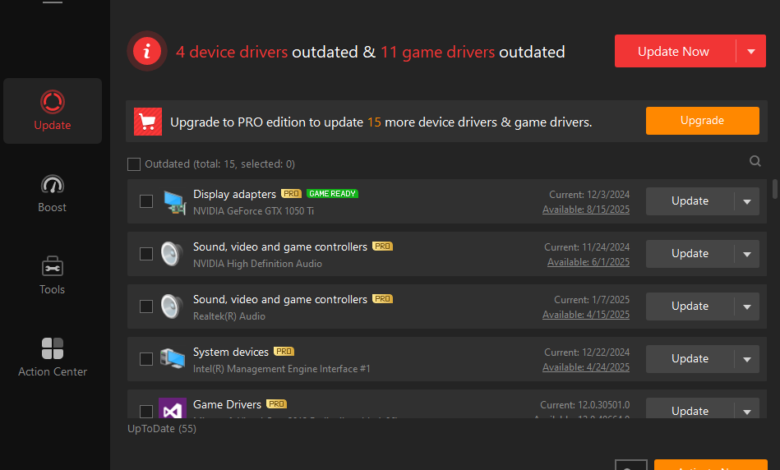
Drivers play a critical role in maintaining system stability and ensuring optimal hardware performance. Updated drivers can introduce new features, improve compatibility, and fix bugs. However, not all updates are flawless. In some cases, a new driver version may conflict with the system, causing unexpected crashes, performance drops, or hardware malfunctions. This is where tools like Driver Booster 13 become useful. It automatically identifies problematic drivers and rolls them back to a previous stable version, helping restore system performance. In this guide, we’ll show you how Driver Booster 13 helps you roll back drivers and quickly fix PC crashes.
Part 1: Common Reasons Your PC Might Be Crashing After a Driver Update
If you’ve recently updated PC drivers and found your system frequently crashing, you’re not alone. While updates are designed to enhance system performance and security, they can sometimes introduce unexpected issues. Below are the most common reasons:
- Incompatible Drivers: One of the most common reasons for crashes after a driver update is that the update may not be compatible with your operating system or hardware.
- Corrupted Driver Files: Another common cause of system crashes after a driver update is corrupted driver files. This can happen if the download or installation process is interrupted due to unknown reasons.
- Conflicts with Windows Updates: Windows updates and driver updates don’t always work smoothly together. In some cases, a Windows patch may conflict with newly installed drivers.
- Faulty Drivers: A faulty or poorly optimized driver update can contain bugs or errors that were not detected during testing. When installed, it can cause sudden crashes.
Part 2: Driver Booster 13: The Ultimate Fix for PC Crashes After Updates

If you’re looking for an ultimate solution for PC crashes, Driver Booster 13 is the best option. It’s an all-in-one driver updater that not only updates outdated drivers but also helps resolve issues related to system instability and crashes. The program offers a reliable backup and restore feature that backs up your current driver version and restores it if an updated driver causes issues. This ensures you always have a safe fallback option, reducing the risk of system instability or crashes after updates. Plus, it includes a database of over 18 million drivers from 1200+ verified manufacturers, such as HP, Dell, AMD, ASUS, Microsoft, and Canon.
Part 3: Powerful Features That Define Driver Booster 13
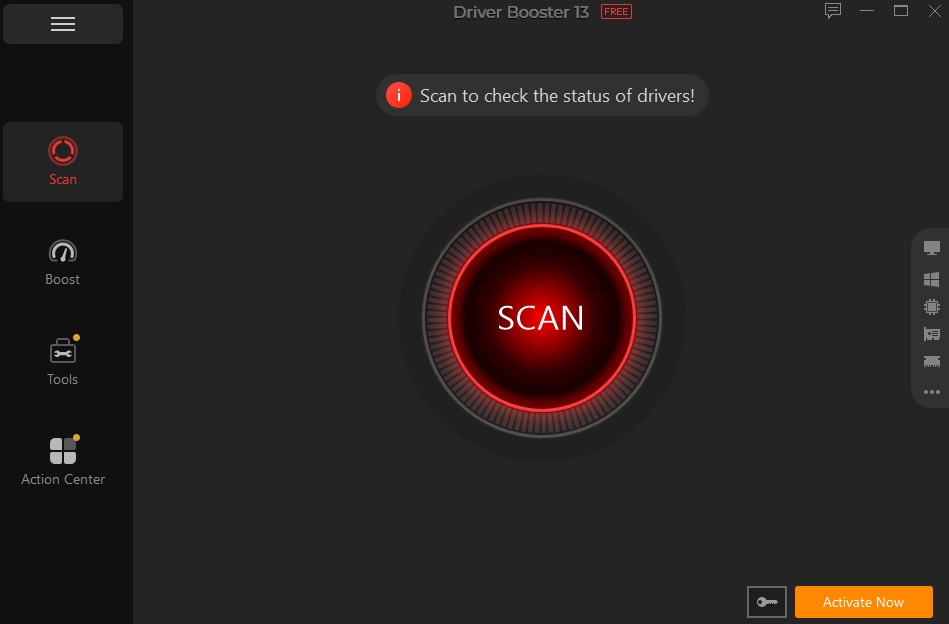
Driver Booster 13 offers amazing features and capabilities that make it one of the best driver management tools available in 2026. Here are the top features of this program:
- Backup & Restore: Driver Booster 13 includes a built-in backup and restore feature, allowing users to save the driver’s current version before making an update. This ensures that if a newly installed driver causes crashes, you can quickly revert to a previous version.
- 18 Million Drivers: The program includes access to a massive database of over 18 million drivers, covering a wide range of hardware, such as graphics cards, audio devices, network adapters, printers, and more. All the drivers available on this program are from verified manufacturers.
- Dual Certifications: Each driver is verified in two steps with Microsoft WHQL and iObit security scan. This dual verification ensures that every driver is safe, stable, and fully compatible with your system. It also reduces the risk of installing faulty, malicious, and incompatible drivers.
- Offline Driver Updater: One of the standout features of Driver Booster 13 is that it updates PC drivers even when you’re not connected to the internet. Plus, it works seamlessly with all Windows versions, including XP, 7, 8, 8.1, 10, and 11.
- Beginner-Friendly: Driver Booster 13 offers an intuitive interface, allowing users to update and restore drivers without any professional help. Users can roll back drivers with a single click — no technical expertise required.
Part 4: Step-by-Step Guide to Roll Back Drivers Using Driver Booster 13
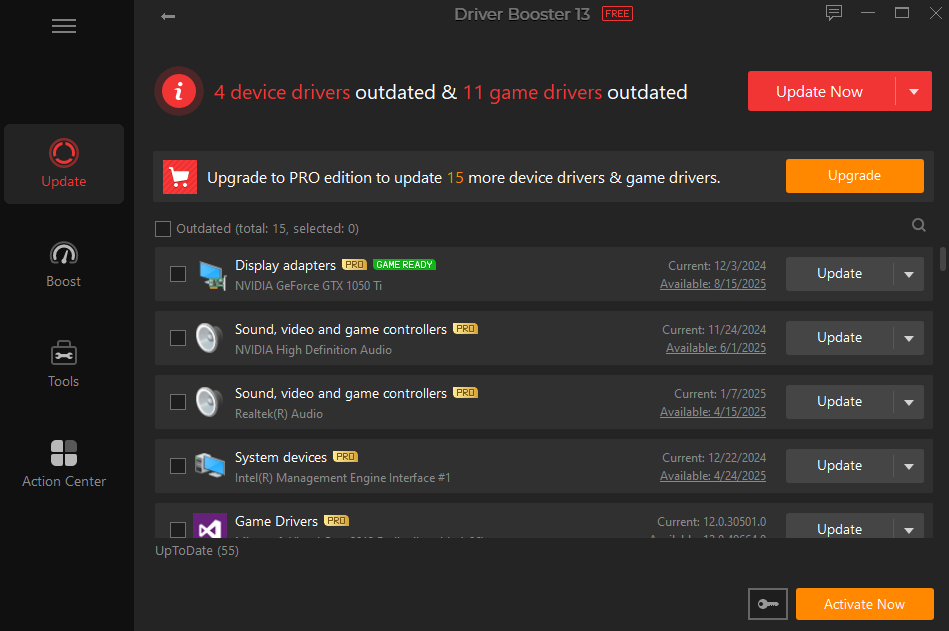
If a recent driver update is causing crashes, rolling back to the previous version is an ideal option. Here is how to back up & restore drivers using Driver Booster 13:
- Download, install, and launch Driver Booster 13 on your PC. Choose the “Tools” option from the left panel and select the “Backup & Restore.”
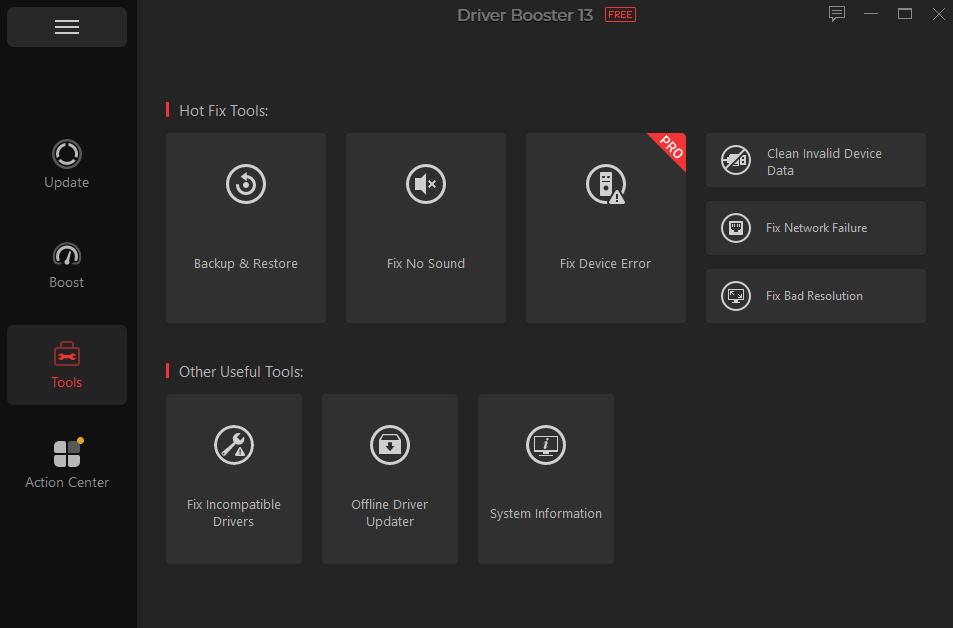
- Now, select all the drivers you want to update to the latest version and click the “Backup” button located in the bottom-right corner.
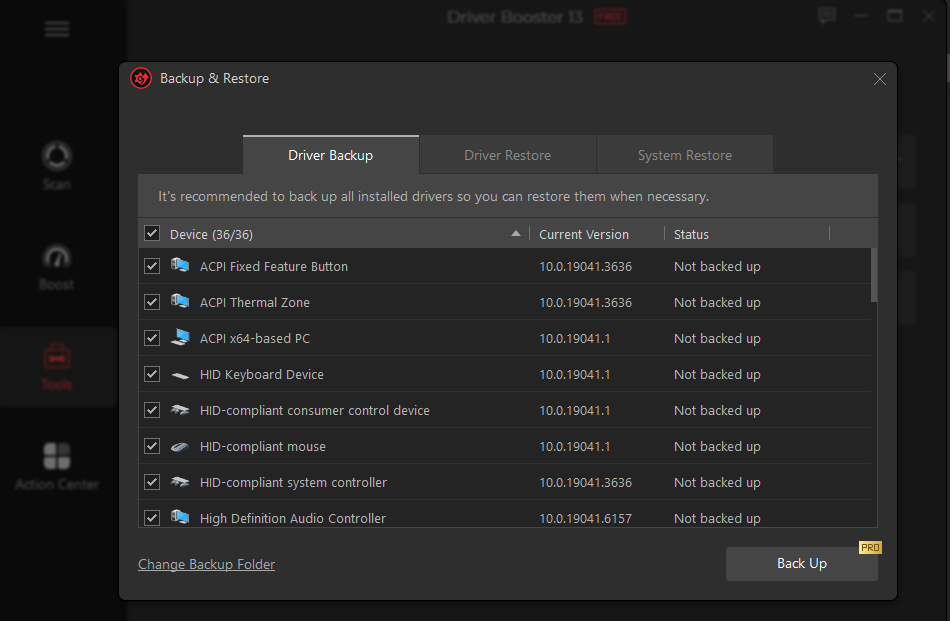
- Once the backup is complete, you can now update the driver without worrying about any issues. If anything goes wrong after the update, you can easily restore the previous stable version.
Final Thoughts
Recently, users have been facing issues like frequent crashes or freezes after updating their drivers. While driver updates are intended to improve PC performance and security, they can sometimes introduce unexpected errors. Fortunately, Driver Booster 13 can quickly resolve this issue by rolling back to a previous, more stable driver version in no time.